Table of Contents
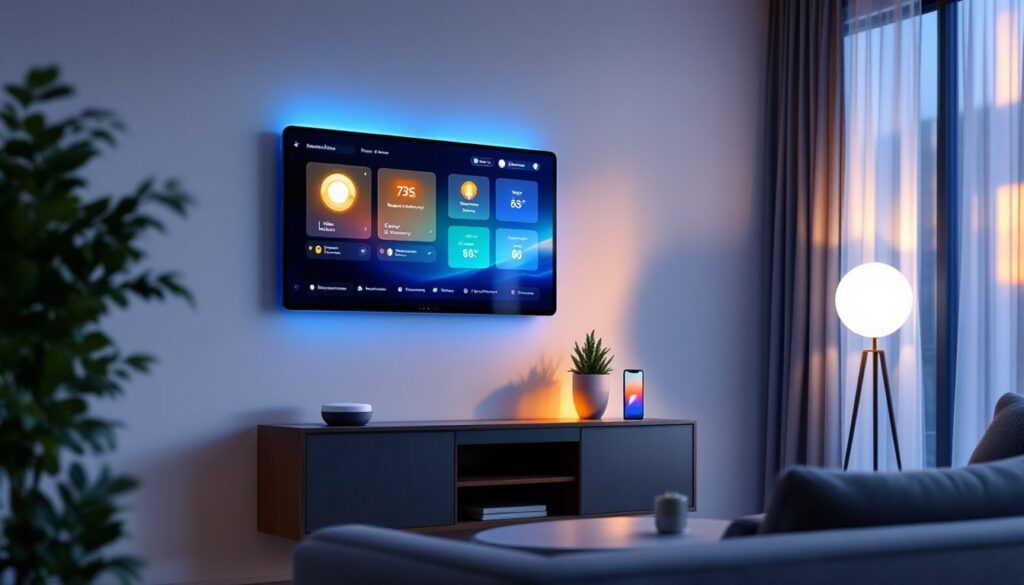
ToggleManaging a dozen smart devices from separate apps gets old fast. Lights in one app, thermostat in another, locks in a third, it’s the opposite of convenient. A smart home dashboard pulls everything into one control interface, whether that’s a wall-mounted tablet, a phone app, or a browser window. Instead of toggling between five different apps to set a bedtime routine, users tap once and everything happens. This guide walks through what these dashboards actually do, which platforms deliver the best results, and how to set one up without needing a degree in computer science.
Key Takeaways
- A smart home dashboard consolidates control of multiple IoT devices into one unified interface, eliminating the need to switch between separate apps for lights, thermostats, cameras, and locks.
- Choose between Home Assistant for advanced customization and local control, or Google Home and Amazon Alexa for ease-of-use and faster setup with cloud-based convenience.
- Proper organization—grouping devices by context (Morning Routine, Leaving Home) rather than device type—transforms a smart home dashboard into an efficient control center.
- Wi-Fi congestion on the 2.4 GHz band is the leading cause of device dropouts; switching to less congested channels (1, 6, or 11) often resolves connectivity issues.
- Home Assistant requires dedicated hardware like a Raspberry Pi 4 and local configuration but offers total control, custom automations, and privacy through local processing without cloud dependency.
- Enable two-factor authentication and segment IoT devices onto a separate network to enhance security, especially for sensitive devices like smart locks and security cameras.
What Is a Smart Home Dashboard and Why You Need One
A smart home dashboard is a unified interface that consolidates control of multiple IoT devices, lights, thermostats, cameras, door locks, blinds, and more, into a single view. Instead of opening the Philips Hue app for lights, the Nest app for climate, and the Ring app for security, users manage everything from one screen.
Modern dashboards go beyond simple on/off switches. They display real-time status (is the garage door open?), historical data (energy usage over the past week), and automations (turn off all lights at 11 PM). Most support customizable layouts, so homeowners can prioritize the controls they use most.
The practical benefit shows up in daily routines. A parent leaving for work can check that all doors are locked, adjust the thermostat, and arm the security system from one screen, no need to bounce between apps or second-guess what’s been set. For households with connected devices from multiple brands, a dashboard eliminates the fragmentation that makes smart homes feel less smart.
Dashboards also enable advanced automations based on multiple triggers. For example, if the front door unlocks after sunset and no one’s home, the system can turn on entry lights, adjust the thermostat, and send a notification, all without manual input.
Top Smart Home Dashboard Platforms to Consider
Choosing the right platform depends on technical comfort, existing devices, and how much customization matters. Here’s what to expect from the leading options.
Home Assistant: The DIY Enthusiast’s Choice
Home Assistant runs on local hardware, typically a Raspberry Pi 4 (4GB or 8GB recommended) or a dedicated mini PC, and supports over 2,000 integrations. It works with nearly every smart device on the market, from Zigbee sensors to obscure Wi-Fi cameras. Because it’s open-source, users aren’t locked into a single ecosystem.
Setup requires basic command-line familiarity, though the web-based interface has improved dramatically. Expect to spend an afternoon configuring integrations and customizing the UI. The payoff is total control: custom dashboards, local processing (no cloud dependency), and automations that can reference dozens of sensors simultaneously.
Home Assistant shines for tinkerers who want granular control and don’t mind occasional YAML editing. It’s not plug-and-play, but the community support and documentation are extensive. If a device has an API, someone’s probably written an integration.
Hardware requirement: A dedicated device running 24/7. The official Home Assistant Yellow board simplifies setup but costs around $150: a Raspberry Pi 4 runs about $75-$100 with a power supply and SD card.
Google Home and Amazon Alexa: Easy All-in-One Solutions
Google Home and Amazon Alexa offer the fastest path to a functional dashboard. Both apps aggregate compatible devices automatically, if it works with Google Assistant or Alexa, it shows up in the app.
Google Home excels with visual dashboards on Nest Hub displays (7-inch or 10-inch). Users can pin favorite controls to the home screen and build routines with simple if/then logic. The interface is clean but limited, customization means rearranging tiles, not redesigning layouts.
Alexa’s dashboard appears in the app and on Echo Show devices. It supports more third-party devices than Google Home, especially older Wi-Fi gadgets. Routines can trigger based on location, time, or device status, though the interface feels less polished than Google’s.
Both platforms require cloud connectivity, so local control during internet outages is minimal. They’re ideal for users who prioritize ease over customization and already own devices in those ecosystems. According to reviews from CNET, Google Home edges ahead for households with multiple Nest devices, while Alexa integrates better with security cameras and third-party hubs.
How to Set Up Your First Smart Home Dashboard
Start by inventorying existing devices. List every smart device in the home, noting the brand and communication protocol (Wi-Fi, Zigbee, Z-Wave, Thread, Matter). This determines platform compatibility.
For a Google Home or Alexa setup:
- Download the app (Google Home or Amazon Alexa) on a smartphone.
- Add devices by tapping the “+” icon and selecting the device brand. Most devices link via OAuth login to the manufacturer’s account.
- Create rooms to group devices logically (Living Room, Bedroom, Kitchen). This organizes the dashboard and simplifies voice commands.
- Build routines by selecting triggers (time, sunrise, device status) and actions (turn on lights, adjust thermostat). Save and test each routine.
- Pin frequently used controls to the home screen for one-tap access.
For a Home Assistant setup:
- Install Home Assistant OS on a Raspberry Pi 4 or dedicated mini PC. Download the image from home-assistant.io, flash it to a microSD card using balenaEtcher, and boot the device.
- Access the web interface at
http://homeassistant.local:8123from any browser on the same network. Initial setup takes about 10 minutes. - Enable integrations by navigating to Settings > Devices & Services. Search for device brands (Philips Hue, Ecobee, TP-Link) and follow authentication prompts. Zigbee and Z-Wave devices require a compatible USB dongle (Sonoff Zigbee 3.0 or Aeotec Z-Stick are common choices).
- Create a dashboard by selecting Overview > Edit Dashboard. Add cards for each device or room, choosing from entity cards, button cards, or custom Lovelace cards from the community.
- Set up automations in Settings > Automations & Scenes. Define triggers (motion detected, door opened), conditions (after sunset, when away), and actions (turn on lights, send notification).
Safety note: If mounting a tablet as a wall dashboard, ensure the power cable is routed through the wall using an in-wall power kit rated for low-voltage wiring. Surface-mounted cables create trip hazards and look unfinished. Check local codes, some jurisdictions require a permit for in-wall wiring, even at low voltage.
Tip: Test automations individually before chaining them. A misconfigured trigger can lock users out (literally, if it affects smart locks) or waste energy.
Customizing Your Dashboard for Maximum Efficiency
A default dashboard dumps every device into a single list. That’s functional but inefficient. Customization turns a device list into a control center.
Group by context, not device type. Instead of separating all lights, thermostats, and locks, create contextual views: “Morning Routine” (coffee maker, kitchen lights, thermostat), “Leaving Home” (lock all doors, arm security, set thermostat to away), “Movie Time” (dim lights, close blinds, pause music). This matches how people actually use their homes.
In Home Assistant, use conditional cards to show controls only when relevant. Display the garage door control only when it’s open. Show the porch light only after sunset. This reduces visual clutter and speeds up decision-making.
Google Home and Alexa support favorites and shortcuts. Pin the most-used controls to the app’s home screen. Create shortcuts for multi-step actions (“Goodnight” locks doors, turns off lights, and sets the alarm).
Use color coding to indicate device status at a glance. Many dashboards let users assign colors to tiles, green for on/active, gray for off, red for errors. This makes scanning the dashboard faster than reading text labels.
For wall-mounted tablets, enable screensaver modes that display useful info when idle: current weather, upcoming calendar events, energy usage, or security camera feeds. The Tom’s Guide roundup highlights platforms like Fully Kiosk Browser and WallPanel for Android tablets, which add motion detection to wake the screen when someone approaches.
Battery-powered devices need special attention. Low-battery notifications should trigger alerts before devices go offline. Home Assistant supports battery threshold automations: Google Home and Alexa send notifications but don’t allow custom thresholds.
Avoid overloading a single dashboard screen. If scrolling is required, split into multiple views or tabs. The point is speed, not comprehensiveness.
Common Challenges and How to Troubleshoot Them
Devices won’t connect or drop offline frequently. This usually points to Wi-Fi congestion or 2.4 GHz vs. 5 GHz band issues. Most smart home devices operate on 2.4 GHz, which has better range but fewer channels. Routers in dense neighborhoods often face interference. Solutions:
- Switch the router to a less congested channel (1, 6, or 11 in the US).
- Enable band steering in the router settings to keep 5 GHz devices off the 2.4 GHz band.
- Add a dedicated access point for smart home devices, isolating them from phones and laptops.
For Zigbee or Z-Wave devices, ensure the mesh network has enough powered nodes (plugged-in devices that act as repeaters). Battery-powered sensors don’t repeat signals. If a device is more than 30 feet from the hub, add a smart plug or bulb between them to extend the mesh.
Automations trigger unexpectedly or not at all. Check trigger conditions carefully. A “motion detected” automation that doesn’t specify time constraints will fire at 3 AM when the cat walks by. Add conditions like “only after sunset” or “only when away mode is active.”
Verify that time zones are set correctly in the dashboard platform. Home Assistant, Google Home, and Alexa all default to UTC unless manually configured. Sunrise/sunset automations fail silently if the location isn’t set.
Dashboard is slow or unresponsive. This affects Home Assistant more than cloud platforms. Causes:
- Too many integrations polling devices simultaneously. Disable unused integrations.
- Underpowered hardware. A Raspberry Pi 3 struggles with 50+ devices: upgrade to a Pi 4 or a mini PC with an Intel N100 processor.
- Database bloat. Home Assistant’s default SQLite database grows large over time. Migrate to MariaDB or PostgreSQL, or reduce the recorder’s purge interval to 7 days instead of 30.
For Google Home and Alexa, slow performance usually means a weak internet connection or server-side issues (which users can’t fix).
Incompatible devices. Not every smart device works with every dashboard. Before buying new gadgets, check compatibility lists. Look for Matter certification (the new universal standard) or dual protocol support (Wi-Fi + Zigbee). Avoid proprietary ecosystems unless already committed, devices like some Arlo cameras or Chamberlain garage openers limit third-party integrations.
If a device absolutely won’t integrate, consider a smart plug with energy monitoring as a workaround. It won’t provide direct control, but on/off scheduling and usage tracking still add value.
Privacy and security concerns. Cloud-based dashboards (Google, Alexa) route commands through external servers, creating potential data exposure. For sensitive applications like door locks or cameras, consider local-first platforms like Home Assistant. Enable two-factor authentication on all accounts and segment IoT devices onto a separate VLAN if the router supports it. This limits damage if a device is compromised.