Table of Contents
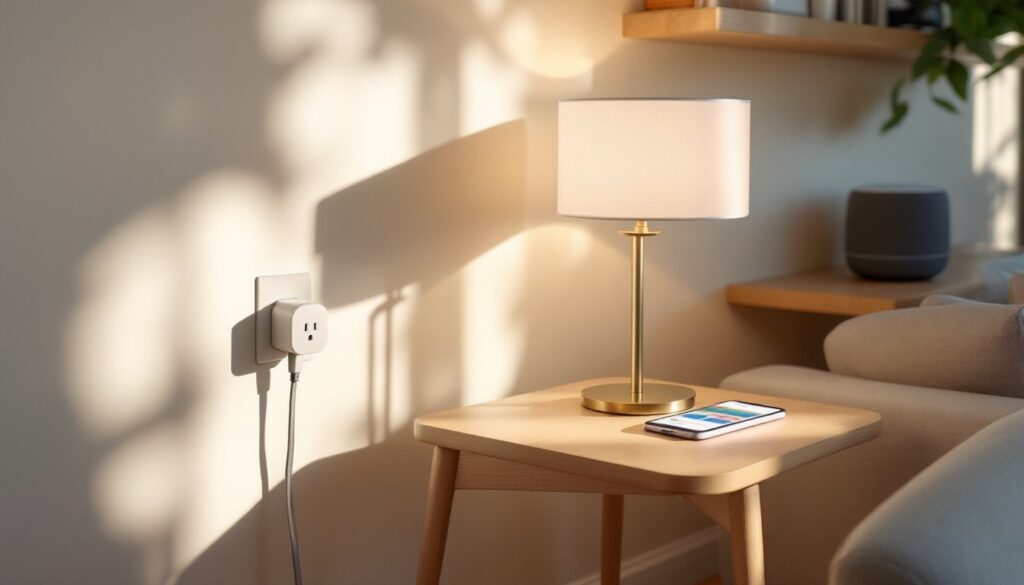
ToggleSmart outlets turn standard appliances into voice-controlled devices without replacing a single fixture. They plug into existing receptacles, connect to Wi-Fi, and let homeowners control lamps, fans, coffee makers, and more through Google Home voice commands or a smartphone app. No rewiring, no neutral wire headaches, no electrician, just plug in, configure, and start automating.
These compact adapters have become essential building blocks for home automation. They bring scheduling, remote control, and energy monitoring to devices that weren’t smart to begin with. For anyone already using Google Assistant, adding smart outlets is one of the fastest, most affordable ways to expand a connected home setup.
Key Takeaways
- Smart outlets with Google Home enable voice control of standard appliances without rewiring, making home automation accessible and affordable for any homeowner.
- Popular models like the Kasa Smart Plug Mini and Wyze Plug offer budget-friendly options under $10, with features including energy monitoring, scheduling, and remote smartphone access.
- Setup takes minutes: download the manufacturer’s app, plug in the outlet, connect to your 2.4 GHz Wi-Fi network, and link to Google Home for instant voice control.
- Energy monitoring on select smart outlets reveals power consumption patterns, helping identify energy-draining devices and reduce utility costs.
- Common troubleshooting solutions include ensuring devices connect to 2.4 GHz networks, checking time zone settings for schedules, and verifying wattage ratings to prevent overheating hazards.
- Creative applications range from automating holiday lights and coffee makers to simulating occupancy while traveling and controlling high-load appliances like window AC units and space heaters.
What Are Smart Outlets and How Do They Work with Google Home?
A smart outlet is a plug-in adapter or in-wall receptacle that connects to a home’s Wi-Fi network and allows remote control of whatever’s plugged into it. Most models feature a single controlled outlet or dual outlets, one always on, one controlled. They communicate using protocols like Wi-Fi or Zigbee, though Wi-Fi models are most common for Google Home compatibility.
When paired with Google Home, smart outlets respond to voice commands through any Google Assistant-enabled device, Nest speakers, Nest Hubs, or the Google Home app on a smartphone. Users can say “Hey Google, turn on the living room lamp” or “turn off the coffee maker,” and the outlet executes the command instantly.
Setup requires the manufacturer’s app first, brands like Kasa, Wyze, and Govee each have their own app for initial configuration. After connecting the outlet to Wi-Fi and naming it, users link the app to their Google Home account. From that point, the outlet appears in the Google Home app alongside other smart devices, ready for voice control, scheduling, or automation routines.
Smart outlets don’t increase the amperage capacity of a circuit. A standard 15-amp residential circuit still applies. Plugging a space heater and a window AC unit into the same outlet, smart or not, can trip a breaker. Always check the device’s wattage rating and ensure total load stays within safe limits.
Top Benefits of Using Smart Outlets with Google Home
Voice control eliminates the need to walk across a room to flip a switch. Lamps, fans, and holiday lights respond to spoken commands, which is especially useful when hands are full or mobility is limited.
Scheduling automates daily routines. Set a floor lamp to turn on at sunset, a coffee maker to start at 6 AM, or a box fan to run for two hours before bed. Schedules run independently of voice commands, creating a set-it-and-forget-it convenience.
Remote access means control from anywhere with a smartphone. Forgot to turn off the curling iron? Shut it down from the office. Want the porch light on before arriving home after dark? Turn it on from the driveway. Managing smart home tech tools from a single app keeps everything accessible.
Energy monitoring is available on select models. Plugs like the Kasa EP25 and TP-Link KP115 track real-time power consumption and historical usage, helping identify energy hogs. A forgotten dehumidifier running 24/7 or an old refrigerator drawing excess power becomes visible in the data.
Safety features include automatic shutoff and overload protection. Some outlets detect when a device draws excessive current and cut power to prevent overheating. Others can be programmed to turn off after a set duration, reducing fire risk from unattended irons or space heaters.
No neutral wire required for plug-in models, unlike some smart switches. Older homes with two-wire electrical systems can use smart outlets without rewiring. In-wall smart outlets do require a neutral, so check the junction box before purchasing a hardwired model.
Best Smart Outlets Compatible with Google Home in 2026
Kasa Smart Plug Mini (EP25) remains a top choice for compact size and reliability. It doesn’t block adjacent outlets, supports energy monitoring, and integrates seamlessly with Google Home. The Kasa app is straightforward, and setup takes under five minutes. At around $10 per plug during sales, it’s budget-friendly for outfitting multiple rooms. Independent testing from CNET consistently ranks it among the best.
Wyze Plug offers dual outlets, one always-on, one controlled, at a lower price point. It lacks energy monitoring but makes up for it with a simple app and fast response times. Wyze’s ecosystem plays well with Google Assistant, and the plug itself measures just 2.2 x 1.6 x 2.2 inches, so it fits behind furniture without bulk.
Govee Smart Plug includes a built-in night light with adjustable brightness and color temperature. It’s particularly useful in hallways, bathrooms, or kids’ rooms where a subtle glow helps with nighttime navigation. The Govee app supports scheduling, and the plug responds reliably to Google commands.
TP-Link Kasa Smart Wi-Fi Plug Slim (EP10) is another ultra-compact option. Its slim profile works in tight spaces, and it supports Away Mode, which randomizes on/off times to simulate occupancy when traveling. No energy monitoring, but rock-solid Wi-Fi connectivity and a $10 price tag make it a reliable workhorse.
Leviton Decora Smart Wi-Fi Plug-In Outlet is built for heavier loads, rated at 15 amps and 1800 watts. It’s bulkier but handles space heaters, window AC units, and power tools that smaller plugs can’t. Leviton’s reliability comes from decades of manufacturing electrical devices, and the plug pairs easily with Google Home.
When comparing options, Digital Trends and Tom’s Guide both emphasize compatibility, app quality, and physical footprint. In-wall outlets like the Leviton DW15P require basic electrical skills, shutting off the circuit breaker, removing the old receptacle, and wiring hot, neutral, and ground leads, but they free up counter space and look cleaner than plug-in adapters.
How to Set Up Your Smart Outlet with Google Home
Materials needed:
- Smart outlet
- Smartphone with manufacturer’s app installed
- Wi-Fi network name and password
- Google Home app (iOS or Android)
Step-by-step setup:
-
Download the manufacturer’s app. Kasa, Wyze, Govee, or whichever brand matches the outlet. Create an account if prompted.
-
Plug in the smart outlet. Most models flash an indicator light (often orange or blue) when powered on and ready to pair. If it doesn’t flash, press and hold the power button for 5–10 seconds to enter pairing mode.
-
Add the device in the app. Tap the “+” or “Add Device” button, select the outlet type, and follow prompts. The app will ask permission to access location and Wi-Fi settings, allow both. The outlet connects to the phone temporarily to transfer Wi-Fi credentials.
-
Connect to Wi-Fi. Select the home network (most smart outlets only support 2.4 GHz, not 5 GHz) and enter the password. The outlet will disconnect from the phone and connect to the router. The indicator light typically turns solid when connected.
-
Name the device. Use specific names like “Living Room Lamp” or “Bedroom Fan” instead of “Outlet 1.” Google Assistant responds better to descriptive labels.
-
Link to Google Home. Open the Google Home app, tap the “+” icon, choose “Set up device,” then “Works with Google.” Search for the outlet’s brand (Kasa, Wyze, etc.), sign in with the same credentials used in the manufacturer’s app, and authorize the connection. The outlet will appear in the Google Home app within seconds.
-
Assign to a room. In Google Home, tap the outlet, select the gear icon, and assign it to a room. This allows commands like “turn on the bedroom lights” to control all devices in that room.
-
Test voice control. Say “Hey Google, turn on [device name]” to confirm it responds. If it doesn’t, check that the outlet is assigned to the correct room and that the Google Assistant device is on the same network.
Safety note: Always verify the outlet is rated for the device being plugged in. A 1500-watt space heater on a plug rated for 1200 watts is a fire hazard. Check the outlet’s specs before connecting high-draw appliances.
Creative Ways to Use Smart Outlets Throughout Your Home
Automate holiday lighting. Schedule outdoor string lights to turn on at dusk and off at midnight, eliminating daily plug-in routines. Set indoor decorations to run on timers so the tree isn’t glowing at 3 AM.
Control a window AC unit remotely. Cool the bedroom before arriving home or shut off the AC from the office if weather changes. Smart outlets with energy monitoring reveal how much the unit costs to run per month.
Make a dumb coffee maker smart. Plug in a basic drip coffee maker, leave the power switch in the “on” position, and use a smart outlet to trigger brewing. Load the grounds and water the night before, then schedule it to start at 6 AM.
Create a bedtime routine. Link the bedroom lamp, fan, and white noise machine to a single Google Assistant routine. Say “Hey Google, goodnight,” and all three turn on or off in sequence. Exploring smart home tech ideas like this simplifies daily habits.
Disable tempting devices. Parents can schedule the TV, gaming console, or Wi-Fi router to shut off at a set time, enforcing screen-time limits without constant reminders.
Power tools in the workshop. A smart outlet on a table saw or router prevents accidental startups and allows remote shutoff if someone forgets to unplug equipment. This works only for tools with mechanical switches that stay in the “on” position, not soft-start or safety-switch models.
Aquarium or terrarium equipment. Automate lights, heaters, and filters on precise schedules. Consistency matters for fish and reptiles, and smart outlets eliminate human error.
Simulate occupancy. Use scheduling or Away Mode to turn lamps and radios on and off randomly while traveling. It’s more convincing than leaving a single light on for a week. Integrating these tactics with broader smart home tech strategies enhances home security.
Troubleshooting Common Smart Outlet and Google Home Issues
Outlet won’t connect to Wi-Fi. Verify the router broadcasts a 2.4 GHz network, many modern routers use 5 GHz by default or combine both bands under one name. Access router settings and create a separate 2.4 GHz SSID if needed. Move the outlet closer to the router during setup to rule out weak signal.
Google Assistant says the device is unavailable. Open the Google Home app, tap the outlet, and check its status. If it shows “offline,” the outlet lost Wi-Fi connection. Unplug it for 10 seconds, plug it back in, and wait for it to reconnect. If the problem persists, unlink and relink the manufacturer’s app in Google Home.
Voice commands work intermittently. Ensure the Google Assistant device and smart outlet are on the same Wi-Fi network. Some routers create separate networks for 2.4 GHz and 5 GHz. If the Nest speaker is on 5 GHz and the outlet is on 2.4 GHz, commands may fail. Merge the bands or manually connect all devices to the same network.
Outlet resets after a power outage. Most smart outlets remember their last state, but some revert to “off” or “on” by default. Check the manufacturer’s app for a “power restore” setting and adjust it to match preferences.
Schedules don’t run. Verify the outlet’s time zone in the app. If it’s set incorrectly, schedules trigger at the wrong time. Also confirm the schedule is enabled, it’s easy to accidentally disable it during testing.
Outlet gets warm. A slight warmth is normal under load, but excessive heat indicates the device is drawing too much current. Unplug immediately and check wattage ratings. Running a 1800-watt appliance on a plug rated for 1200 watts causes overheating and potential fire risk.
App won’t link to Google Home. Log out of both the manufacturer’s app and Google Home, then log back in. Ensure both apps are updated to the latest version. Some users find success by unlinking, deleting the outlet from Google Home entirely, and starting fresh.
Multiple outlets respond to one command. This happens when devices share similar names. Rename outlets with unique identifiers: “Front Porch Light” instead of “Porch Light” and “Back Porch Light.”
Conclusion
Smart outlets deliver voice control, scheduling, and remote access without rewiring a single receptacle. They fit into any home automation plan, from a single lamp to a house full of connected devices. Setup takes minutes, compatibility with Google Home is nearly universal, and the price point makes experimentation low-risk. Start with one or two outlets in high-traffic areas, test routines, and expand as needs become clear. The wiring stays simple, the control gets smarter, and the home runs a little more efficiently.